Last updated · Written and tested by The GifEraser team, who build and maintain this tool.
This free PNG to GIF converter builds an animated GIF from your PNG frames in seconds. It’s made for sprite sheets exported as frames, animation exports from Procreate, Aseprite, After Effects or Blender, and any time you need a looping image that works everywhere: email, Slack, Discord, GitHub READMEs and old CMSs that reject video.
How to convert PNG to GIF
- Add your frames. Drag in PNG files (JPG and WebP work too). They’re sorted by file name using natural order, so
frame-2comes beforeframe-10. - Check the order. Use the arrows under each thumbnail to move a frame, or ✕ to drop it.
- Set the speed. The delay slider sets how long each frame shows. 100 ms is 10 frames per second; 40 ms is a smooth 25 fps.
- Pick a background. Keep transparent preserves clear areas; Solid fills them with a color you choose (smaller files).
- Make and download. Preview the loop, then download the GIF.
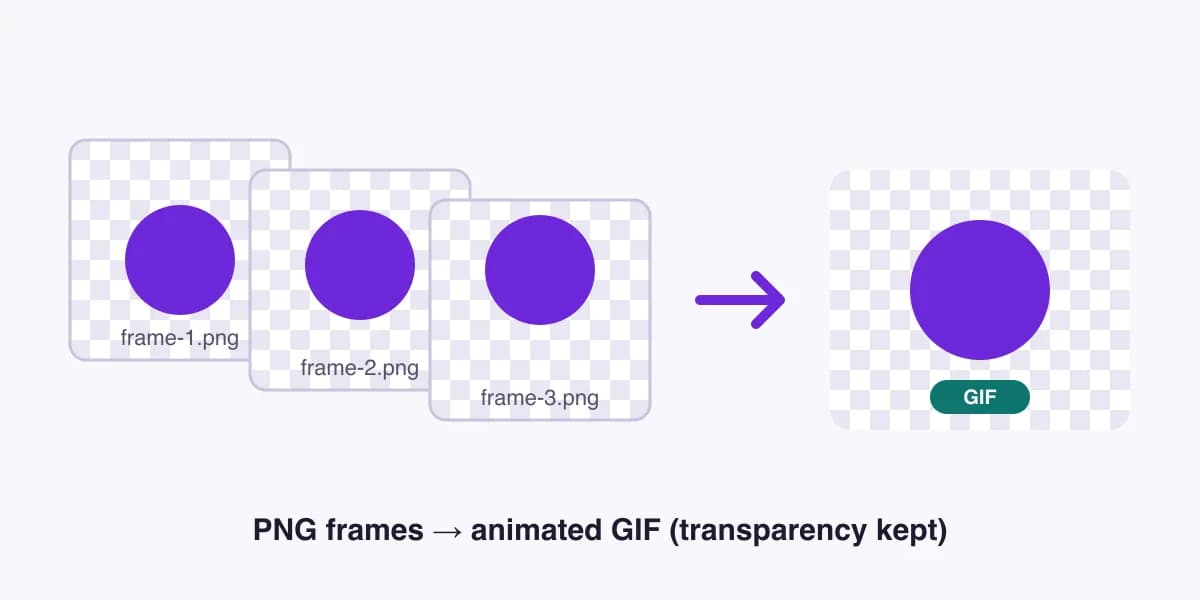
PNG vs GIF: what changes when you convert
| PNG | GIF | |
|---|---|---|
| Animation | No (APNG yes) | Yes, plays everywhere |
| Colors | Millions | Up to 256 per frame |
| Transparency | Smooth alpha | On/off per pixel |
| Best for | Stills, screenshots | Short loops, stickers, UI demos |
Tips for better PNG to GIF results
- Keep frames the same size. All frames are fitted inside the first frame’s dimensions; mismatched sizes get letterboxed.
- Use flat colors where you can. GIF’s 256-color palette is perfect for illustrations; gradients may band.
- Trim duplicates. Identical frames add size without motion. Remove them or raise the delay instead.
- Shrink after. If the GIF is too heavy for Slack or email, run it through our GIF compressor.
Already have a GIF with an unwanted background? Our GIF background remover cuts it out frame by frame and gives you a transparent GIF back.
PNG to GIF FAQ
How do I convert PNG to GIF?
Drop your PNG files into the tool, check the order (files are sorted by name, so frame-1, frame-2… line up automatically), set the frame delay and click Make GIF. Then download your animated GIF.
Does converting PNG to GIF keep transparency?
Yes. Choose Keep transparent and fully transparent pixels stay clear. GIF only supports on/off transparency, so semi-transparent edges are rounded; for smooth alpha, export APNG or animated WebP with Pro.
Can I convert a single PNG to GIF?
Yes. Add one image and you’ll get a static GIF. Add two or more to get an animation.
Why does my GIF look grainier than the PNG?
GIF stores at most 256 colors per frame, while PNG can hold millions. Photos and gradients lose some detail. Flat graphics, logos and pixel art convert almost perfectly.
How many frames can I use?
Up to 100 frames and 800px on the free plan. Pro raises that to 1,000 frames at full resolution.
Are my PNG files uploaded?
No. The conversion happens entirely in your browser, so your images never leave your device.